Optimized Data Export Solution Using Bookmarks, Buttons & Conditional Logic in Power BI
Objective
Power BI provides robust capabilities for large datasets but imposes limits when exporting data or when viewing tables with large date, Specifically:
- Export limits are 500,000 rows when using DirectQuery.
- For best performance and portability, exporting below 150,000 rows is ideal.
- When exporting/viewing more than the allowed limit, users may encounter a “query exceeds resource” error or degraded report performance.
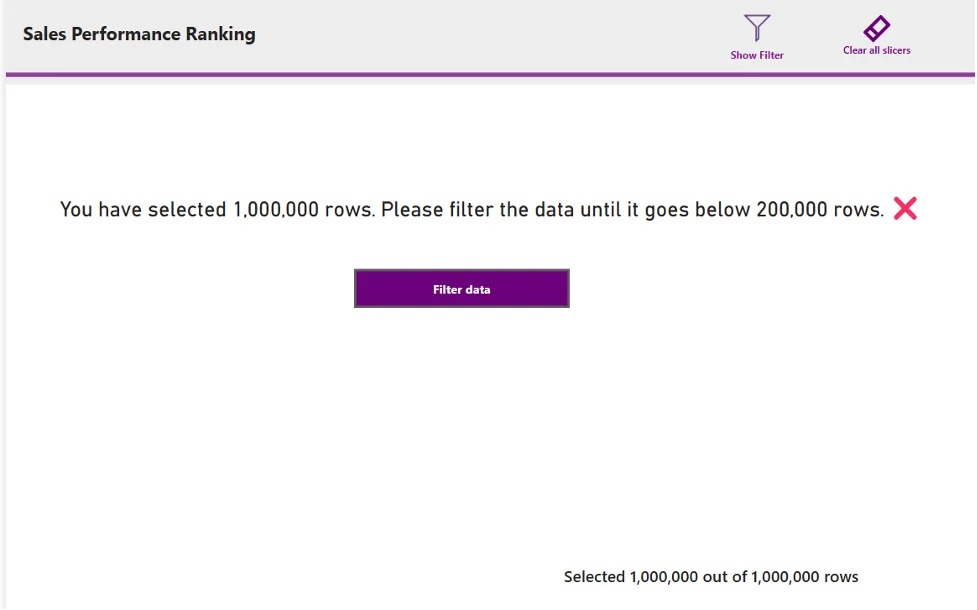
To proactively address this, we implemented a user-guided filtering and export workflow using Bookmarks, Buttons, and Conditional Formatting, allowing seamless navigation while maintaining performance boundaries.
Solution
- Row Count Enforcement Logic
A DAX measure was created to check if filtered data falls within the acceptable threshold:
Check Filtered Rows =
IF(COUNTROWS(FilteredTable) <= 150000, TRUE(), FALSE())
This measure is used to drive both button text and page navigation.
- Conditional Navigation Button
We designed a central button that dynamically:
- Changes label text based on row count
- Redirects the user either to the raw data table or prompts further filtering
➤ Button Text Logic (Conditional Formatting):
The DAX below changes the text based on the condition
IF (
[Check Filtered Rows], //if number of rows is less than the threshold 150,000
“✅ Load Table”,
“⚠️ Filter Data”
)
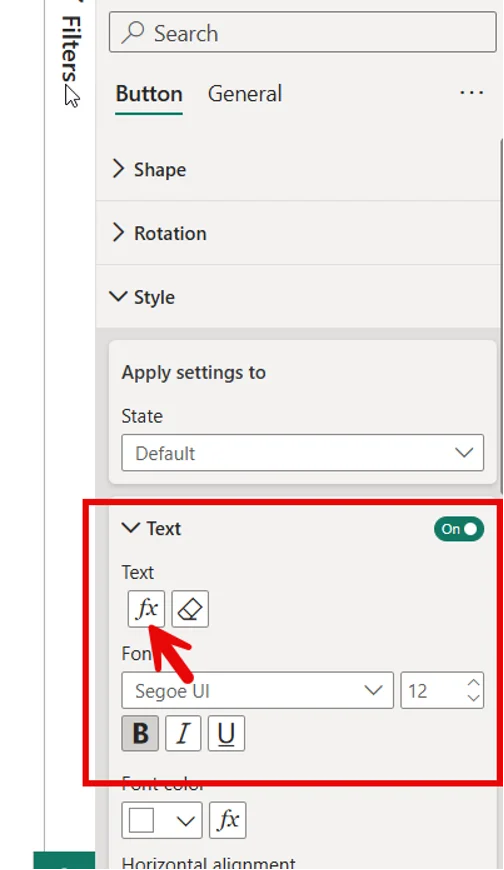
➤ Button Navigation Logic:
IF (
[Check Filtered Rows],
“Raw Data – Table”, // Navigates to detailed export Page
“Detail Table” // Remains on current page or shows warning
)
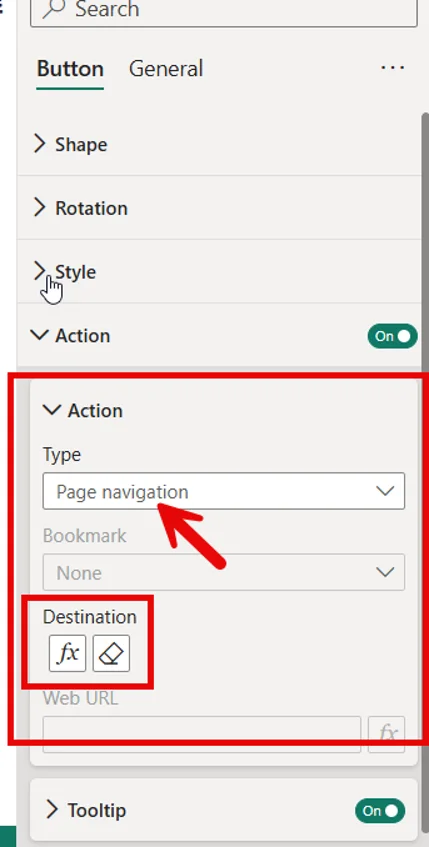
This ensures users cannot access the raw data page unless their filtered selection is within safe export limits.
Filter Management via Bookmarks
To support user-driven filtering:
- A bookmark was created to toggle the visibility of the filter pane
- Buttons labeled “Show Filter” and “Clear All Slicers” were added:
- Show Filter reveals slicers to allow data narrowing
- Clear All Slicers resets the entire filter context
These bookmarks help users intuitively reduce data volume without navigating away or encountering performance issues.
UX Enhancements
- Display cards showing:
- Total selected rows
- Row limit reminder (“Please filter below 150,000 rows”)
- Red ❌ icon appears if threshold is exceeded (via conditional formatting)
- Green ✅ icon appears when within limit, encouraging users to proceed
Navigate to the “View Raw Data” Tab to test out functionality.