Business Scenario: Customer Profitability

User Feedback & Challenges

  1. Lack of Hierarchical Filtering
    “When I filter to a customer like Advent Health, I still see unrelated cost centers in the dropdowns. I expect all other filters to update based on my first selection.”
    Root Cause: Filters come from separate dimension tables, preventing natural hierarchy propagation in slicers.
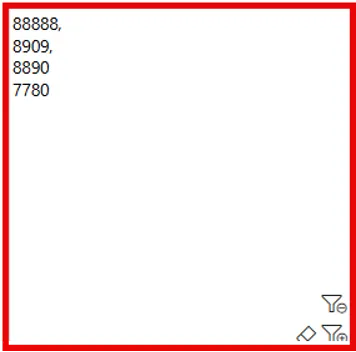
  1. Bulk ID Filtering from Excel
    “I want to copy multiple SKUs or IDs from Excel into Power BI at once, instead of selecting them one by one.”
    Root Cause: Default slicers don’t support mass input; users require more flexible filtering for large ID sets.
  1. Data Quality: Incomplete Revenue Feed
    “Revenue data is always the last to be updated. We need the report to only show complete data up to the most recent available month in the revenue table.”
    Root Cause: There’s no automated data cut-off logic to align all visuals with the freshest revenue period.

Implemented Solutions

  1. Simulated Hierarchy Filtering with Contextual Flag
    Due to multiple dimension tables, true hierarchies aren’t possible. Instead:
  • Implemented cross-filtering logic using a central flag based on Fact Tables.
  • To achieve, slicers should be used not filters in the filter pane.
  • Flag must include all fact table.
  • Total Cost is a summation of fact APS, Material & Labor
  • DAX: 

    FilterFlag = 

    IF(

        NOT(ISBLANK([Total Cost])) 

        || NOT(ISBLANK(SUM(Fact_Revenue[MOR_USD_AMOUNT]))), 

        1, 

        0

    )

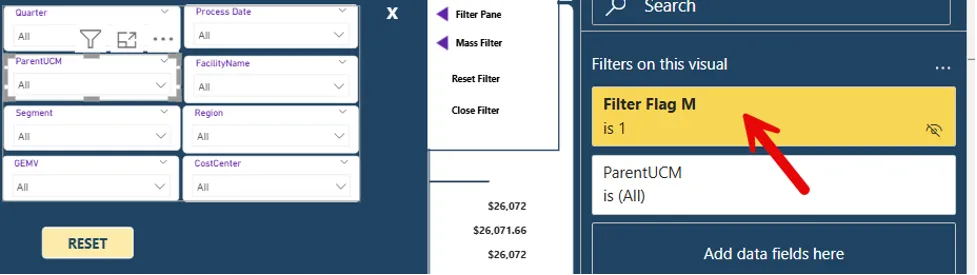
  • Flag should be used as a filter on that visual/slicer and set to 1
  • Slicers are filtered by FilterFlag = 1, ensuring that only contextually valid values (e.g., cost centers tied to the selected customer) appear.

💡 This ensures filters behave hierarchically without needing a physical hierarchy.
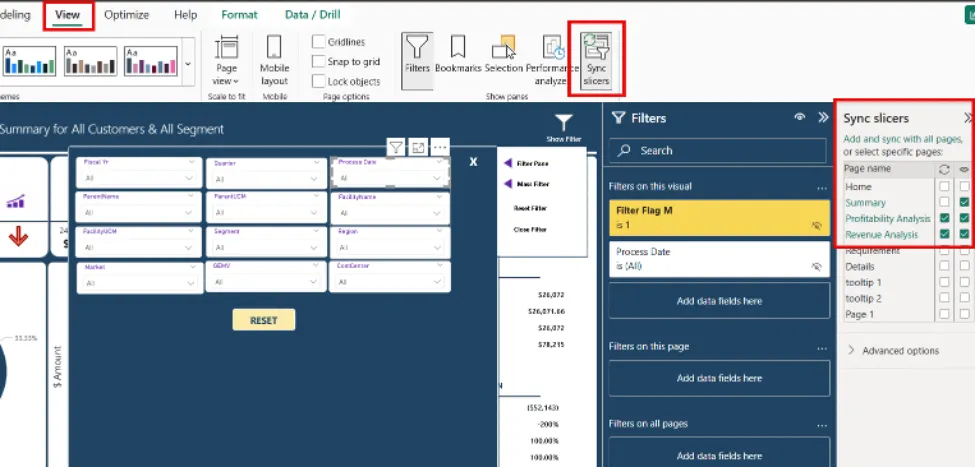
Note: PowerBI provides the option to synchronize filters, be sure to ask users if they would love to enable this feature.
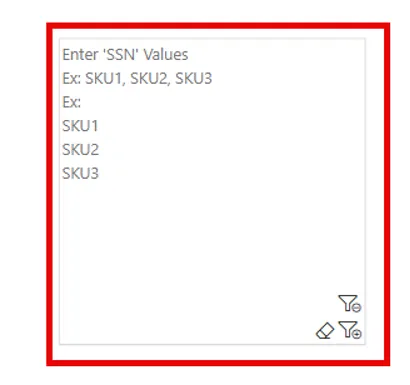
2. Mass Filter Slicer from Marketplace

🧪 Example:

SKU1, SKU2, SKU3

📋 Streamlined workflow for power users handling bulk SKU/SSN filtering.
 Dynamic Fiscal Period Cut-Off Using M Code

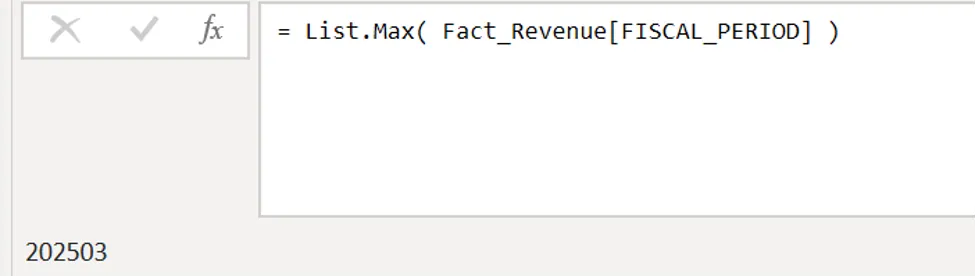
  • To synchronize visuals and prevent partial data display, I used Power Query to calculate the latest complete period from the Fact_Revenue table:

MaxPeriod = List.Max( Fact_Revenue[FISCAL_PERIOD] )
  • Applied a number filter to each fact table:

FilteredRows = Table.SelectRows(Source, each [FISCAL_PERIOD] <= MaxPeriod)
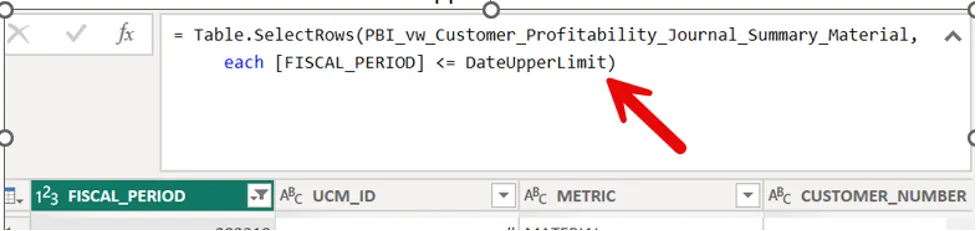
🧊 Ensures consistency across all visuals and avoids misleading insights from partial revenue loads.

Resulting Report Enhancements

  • Dashboard only shows complete data up to the freshest available revenue period
  • Filters update contextually, simulating hierarchy even across separate dimension tables
  • Users can easily paste in bulk ID lists, significantly improving efficiency
  • Report now includes:
    • Revenue vs. prior quarter delta
    • Top customer & segment
    • Cost breakdown (Material, Labor, PS)
    • Margin impact visuals